Arduino / Robotics
4WD robot: from wiring to the first drive
Build the wiring, make the first test, and understand how the actual code connects the joystick to the motors, camera, and sound.
A four-wheeled robot with a camera, controlled from your phone’s browser: that is what we are building. The ESP32-CAM sends the picture and receives our commands, the L298N drives the four motors, and the DFPlayer Pro handles sound. No separate phone app is needed.
We will start by following the power supply and understanding what each board does. Then we will move on to the wiring, the first firmware upload, and a test with the wheels off the ground. In the second half, we will open the actual code: how a joystick movement reaches the wheels, and what happens when the connection is lost.
This guide covers the 4WD Robot v1.5. The diagrams and complete table remain available for every connection, but you do not have to read all 36 table rows before you can understand the build.
Code excerpts retain the original executable statements; comments are translated for readability.
Parts · Assembly · Diagram · First startup · The code · Troubleshooting · Wiring table · Downloads
What we need and what each part does
The robot has three straightforward parts: power, movement, and control. Separating them first makes the many pin names easier to follow.
- ESP32-CAM and ESP32-CAM-MB programming base — The ESP32-CAM combines the controller and camera. It runs the firmware, creates the Wi-Fi network, and serves the control page. The MB base is used at the desk for the first USB upload; it does not remain connected to the robot’s power supply.
- Four TT motors, a chassis, and an L298N — The two left motors work together, as do the two right motors. The L298N supplies motor power and changes their direction according to the ESP32-CAM’s signals. We do not power motors directly from a controller pin.
- 3×18650 holder, switch, and 5A fuse — The three cells are connected in series: 11.1V nominal, ranging from 9.0V to 12.6V. The recommended fuse goes immediately after the battery positive terminal. The holder has no built-in protection; detailed precautions are in the battery notes.
- HW-468 converter (5V 5A) and four WAGO connectors — The converter steps the voltage down for the electronics. The WAGO connectors distribute power: WAGO A carries battery positive, WAGO B is the motor return, and WAGO 5V and WAGO GND supply the electronics. All grounds remain connected together.
- DFPlayer Pro, DFR0119 amplifier, and 4Ω speaker — This is the audio path shown in the supplied diagrams. The ZIP describes a different arrangement, using the DFPlayer’s built-in amplifier. Read the clarification below before wiring the audio.
- Wires and small components — You need 0.5mm² power wire, female Dupont terminals for signals, a C1 capacitor rated 470–1000µF/16V, and optionally a 10kΩ R1 resistor. The exact endpoints and wire sizes are preserved in the connection table. A multimeter is needed for the checks before connecting the ESP32-CAM.
A clarification before connecting the audio
The diagrams connect the DFPlayer Pro’s
DACLto the external DFR0119 amplifier’sLIN, with the speaker on the amplifier’sL+/L−. In the ZIP, however, comments inrobot_config.hdescribe a speaker connected directly to the DFPlayer, androbot_audio.hsendsAT+AMP=ONto enable its built-in amplifier.These are two descriptions of different audio arrangements. Before combining the diagram with the ZIP, confirm with the author which variant is intended for your build. The difference is also recorded with the downloads; neither the wiring nor the firmware is silently changed here.
Understand the power supply before adding wires
Think of the supply as two paths starting at the same battery. The first goes to the L298N for the motors. The second passes through the HW-468 and ends at 5V for the ESP32-CAM and the other electronics. A common GND gives the signals the same reference; it does not mean motor current should pass through the thin logic wires.
- Start with the battery disconnected. Arrange the holder, fuse, switch, and the two battery WAGO connectors. The positive path is battery → 5A fuse → switch → WAGO A.
- Build the converter supply. The HW-468 has only IN+, GND, and OUT+. Input and output share GND. Check the printed labels, rather than relying on screw positions.
- Check 5V before connecting the ESP32-CAM. With the board removed from the Dupont connectors, measure 5.0–5.2V on #11 relative to #12, then switch off again. Do not rely on wire colour alone.
- Connect the controller, then the signals. #11 goes to the actual 5V pin and #12 to the adjacent GND, never to 3V3. Fit C1 beside those pins, with its negative stripe toward GND. Keep #11/#12 as short as possible, under 15 cm.
- Move on to motors and audio. Both motors on each side connect in parallel to the same L298N channel. Choose the appropriate audio variant from the clarification above first. Keep the wheels off the ground for the first power-on.
Before switching on, use a multimeter to check that WAGO A and WAGO B are not shorted together. Also read the battery precautions and the ESP32-CAM orientation notes. This explanation helps you read the diagram; the narrative does not replace the exact pin assignments.
Wiring diagram
⚠ The ESP32-CAM is shown FROM THE BACK Hold the board so that you can see the printed pin labels, not the camera, with the antenna pointing up. The row containing 5V · GND · IO12…IO4 is then on the right, as drawn. The 5V pin is at the end away from the antenna, beside the AMS1117 chip. Looking at the camera side puts this row on the left. Connecting a 5V wire to 3V3 destroys the board.
Drag to pan · + / − to zoom · Select a wire to see its connections
- +11.1V battery (0.5mm²)
- GND
- +5V
- motors
- audio
- signals (Dupont)
- optional, recommended
Wire lengths in the drawing are not to scale Cut each wire as short as practical. In particular, #11 / #12, the ESP32-CAM’s 5V/GND pair: use 0.5mm² wire with a female Dupont terminal, crimped or soldered, under 15 cm. Thin, long wires here cause resets.
How to read the diagram The ESP32-CAM is shown from the back, where the pin names are printed; its camera faces away from you. The L298N is oriented with its heatsink on the right. Each OUT1–OUT4 screw takes two wires, connecting two motors in parallel.
Before turning on the switch
- Use a multimeter: no short circuit between WAGO A and WAGO B.
- Remove the ESP32-CAM from the Dupont connectors and switch on. Measure 5.0–5.2V at wire #11’s Dupont terminal relative to #12. Switch off.
- Reconnect the ESP32-CAM: #11 must go to the pin labelled 5V and #12 to the GND immediately beside it. NEVER to 3V3 on the opposite row.
- C1’s negative stripe faces GND.
- First power-on: wheels off the ground.
Terminal harness
The second diagram groups the same wires by component. It is useful when checking what connects to a particular board, rather than tracing the entire path through the first diagram.
Each component and WAGO appears as a connector with its own terminal list. Grey terminals remain unconnected. The numbers match the table and wiring diagram.
The same 36 connections, arranged by terminal.
From the first upload to the first test
Firmware is the program that runs on the ESP32-CAM. We first upload it from the computer using the MB base; the same board then serves the control page over Wi-Fi. We will work through this in order, never connecting USB and battery power together.
Download and extract the firmware ZIP. It contains the robot_firmware directory, with the main file and six headers. Before uploading, read the clarification about your audio arrangement.
1. Prepare Arduino IDE
-
Arduino IDE 2.x → File → Preferences → Additional boards manager URLs:
https://espressif.github.io/arduino-esp32/package_esp32_index.json -
Tools → Board → Boards Manager → Espressif “esp32”, version 3.x; the original guide reports testing 3.3.6.
-
Open the
robot_firmwaredirectory, containingrobot_firmware.inoand its.hfiles. -
In
robot_config.h, change at leastAP_PASSWORD, using 8+ characters, andOTA_PASSWORD. -
Tools settings:
- Board: AI Thinker ESP32-CAM. This board enables PSRAM automatically; if selecting “ESP32 Dev Module”, set PSRAM to Enabled.
- Partition Scheme: Minimal SPIFFS (1.9MB APP with OTA/128KB SPIFFS). Select this FROM THE FIRST upload for OTA to work. The default “Huge APP” leaves no OTA space; the firmware then prints a Serial warning and does not enable OTA.
- Upload Speed: if uploading stops partway through, choose 115200.
- Port: the MB base’s CH340 port.
2. Make the first upload using the MB base
- Switch off the robot. Unplug the ESP32-CAM from the robot’s Dupont leads and fit it onto the MB with the camera facing up, matching the labels: the ESP32-CAM’s 5V/GND must sit over the MB’s 5V/GND. On most MB boards, the microSD/5V end faces USB. Each row has eight pins, so it can also fit backwards: check twice.
- Connect USB to the computer. If no port appears, install the CH340 driver.
- Press Upload. If it stalls at “Connecting…”, hold IO0 on the MB, press RST on the ESP32-CAM, then release IO0.
- Open Serial Monitor at 115200 and press RST. If nothing appears, press RST on the ESP32-CAM again. You should see “Access Point “Robot-4WD”” and
http://192.168.4.1. - Disconnect USB, remove the ESP32-CAM from the MB, and reconnect the robot wiring, with 5V/GND/IO in the correct positions shown in the table.
Never USB and battery together The MB feeds 5V directly to the board. If the robot is on, the two supplies are connected against each other.
3. Connect the phone and make a small test
By default, the robot creates its own Access Point (AP). The phone joins it like an ordinary Wi-Fi network, but the robot does not provide Internet access. The camera and controls work locally.
- Raise the robot so that the wheels do not touch the ground. Turn on the switch.
- On the phone, open Settings → Wi-Fi → Robot-4WD, using the
AP_PASSWORDpassword. If the phone reports “no Internet”, choose to remain connected. - Open
http://192.168.4.1in the browser. The camera is at the top, with joystick, light, and audio controls below. The dot beside the title turns green when connected. - Push the joystick slightly forward: all four wheels should turn forwards. If a whole side runs backwards, change
INVERT_LEFT/INVERT_RIGHT. If left and right are swapped, exchange the OUT1/2 ↔ OUT3/4 pairs. - If no new movement command arrives for more than 500 ms, the code requests zero speed and the ramp reduces output toward zero. This is the communication failsafe, not a promise that the wheels physically stop at exactly half a second.
Optionally, to join home Wi-Fi as a Station (STA), enter STA_SSID/STA_PASSWORD; the IP appears in Serial Monitor. The supplied ZIP waits up to 20 s, controlled by STA_TIMEOUT_MS 20000. If it cannot connect, it runs network diagnostics and returns to Access Point mode. The original instructions said 10 s; the difference is recorded with the downloads.
4. Add the audio files
- Connect the DFPlayer Pro to the computer with a USB-C cable. It can remain mounted, but the robot should preferably be switched off. It appears as a 128MB USB drive.
- Copy files to the drive’s root as
01.mp3,02.mp3, and so on, in that order, one at a time. Preferably use mono, 128 kbps files. - “♪ 1” plays the first file, and so on. With
TRACK_BY_FILENAME 0, the default, numbering follows copy order. To select by filename instead, setTRACK_BY_FILENAME 1.TRACK_COUNTdetermines how many buttons appear. - Use “Safely remove” before unplugging USB-C.
If it plays automatically at every startup (optional) Some DFPlayer modules start playing when powered on. In that case: (1) create a ~1 s silent file named
silence.mp3; (2) copy it to the drive’s root LAST, after all songs, otherwise button numbers shift; (3) setDFP_STOP_ON_BOOT 1inrobot_config.hand upload again. The robot plays the silent file at startup and the module stops.
Volume The DFPlayer sends no response because its TX is unconnected. The displayed volume is therefore the last value sent by the robot. It starts at
DFP_DEFAULT_VOLUME, 20. On every power-on, the robot resends its settings: no spoken startup message and one track at a time.
5. What changes for later upgrades
OTA means upgrading over the network: the next program arrives through Wi-Fi instead of USB. Suitable memory partitioning is needed from the first USB upload, which is why the earlier Partition Scheme choice matters from the start.
With the phone or laptop connected to “Robot-4WD”, Arduino IDE shows a network port named robot4wd. Select it and press Upload; it asks for OTA_PASSWORD. The motors stop automatically during the upgrade.
The main functions at a glance
If the first test behaved as expected, we now have a camera, movement control, light, and an audio path. The figures below are a useful reference; next we will look at the code behind each behaviour.
- MJPEG camera on port 81,
/stream; control page on port 80; WebSocket control through/wsat ~20 messages per second, with HTTP/controlas a fallback. - 1 kHz, 8-bit PWM on IN1–IN4, LEDC channels 2–5; 65% limit, 30% minimum, gradual acceleration, 500 ms failsafe.
- GPIO4 flash on LEDC channel 6, with adjustable brightness.
- DFPlayer Pro controlled through AT commands on GPIO2 at 115200 baud.
Understanding the code, step by step
Once the robot responds, it is worth looking at what happens inside it. You do not have to read all seven files from beginning to end. Start with one simple question: what happens between pushing the joystick and the wheels moving?
The following excerpts come from the guide’s ZIP. Their executable statements are unchanged; comments are translated into English for readability. They illustrate specific parts of the program. To upload it to the board, use the complete robot_firmware directory, not these excerpts alone.
A map of the seven files
robot_firmware.ino— Starts the subsystems, connects to Wi-Fi, and runs the main loop.robot_config.h— Collects passwords, pin assignments, speed limits, and the other settings.robot_motors.h— Turns joystick positions into movement for the left and right sides, with gradual changes and a check for missing commands.robot_camera.h— Configures the camera and the memory used for its frames.robot_web.h— Serves the page, commands, and video stream. Light control is here too.robot_web_ui.h— Contains the HTML page and JavaScript that run in the phone’s browser.robot_audio.h— Sends playback and volume commands to the DFPlayer Pro.
A useful first distinction: C++ runs on the ESP32-CAM. The JavaScript in robot_web_ui.h runs on the phone. The two sides communicate over Wi-Fi.
What happens when the robot powers on
setup() runs once at startup. First it holds the motor pins LOW and turns off the flash. Then it prepares motor control, light, camera, and audio. Finally it starts Wi-Fi, the web servers, and, if suitable memory partitioning is available, Wi-Fi upgrading.
loop() repeats continuously:
void loop() {
  motors::update();   // ramp + 500 ms failsafe
  light::update();
  audio::update();    // sends queued AT commands
#if ENABLE_OTA
  if (s_otaReady) ArduinoOTA.handle();
#endif
  delay(2);
}
Each pass lets the motors move closer to their target speed, applies any light change, and sends the next audio command. ArduinoOTA.handle() services wireless upgrades when OTA is ready. delay(2) is a short pause, not an instruction to drive the robot for two seconds.
The HTTP handlers run on the servers started by web::begin(). That is why you will not find a web::update() call inside loop().
From a finger movement to a command
On the phone, the joystick position becomes two numbers: x for left/right and y for reverse/forward, ranging from −100 to 100. While you hold it, the page sends that position roughly every 50 ms, or 20 times per second.
For example, J,20,60 means “a little right and well forward”. The message reaches /ws, the WebSocket connection: a channel kept open for exchanging small messages. In robot_web.h, the command is recognised here:
    case 'J':
      if (readInt(p, -1000, 1000, &a) && *p++ == ',' && readInt(p, -1000, 1000, &b)) {
        motors::setJoystick(a, b);
        return true;
      }
      break;
The page retries when the connection is lost. After three WebSocket failures, it enables fallback HTTP requests: /control for the joystick and /cmd for other commands. Both approaches reach the same firmware control functions.
When you release the joystick, the phone sends J,0,0 three times, 60 ms apart. If the tab moves into the background, it also tries to send a stop command.
How it turns without a steering wheel
The robot has two drive groups: the two left motors and the two right motors. Turning changes the relationship between their speeds. The main calculation in motors::setJoystick() is:
  int l = y + x;
  int r = y - x;
  // normalise to |l|,|r| ≤ 100 while preserving their ratio
  int m = max(abs(l), abs(r));
  if (m > 100) {
    l = l * 100 / m;
    r = r * 100 / m;
  }
With x = 0, both sides receive the same value and the robot moves straight. With x = 20 and y = 60, the results are 80 on the left and 40 on the right: the left side requests more speed, turning the robot right. If the absolute magnitude of either value exceeds 100, normalisation scales both down while preserving their ratio.
Before this calculation, the program clamps inputs to −100…100 and ignores deviations smaller than 8% on either axis. Afterwards, it applies INVERT_LEFT and INVERT_RIGHT if either side needs reversing.
The result does not go straight to the motor as a percentage. pctToDuty() converts it into a PWM value. PWM switches the output on and off rapidly; the duty specifies how much of each cycle stays on. The supplied ZIP uses these settings:
#define MAX_DUTY       166         // ≈ 65 %
#define MIN_DUTY       77          // approximately 30%; below this the motors do not start
#define JOY_DEADZONE   8           // % - joystick dead zone
#define RAMP_UP_STEP   6           // maximum duty increase per step (acceleration)
#define RAMP_DOWN_STEP 20          // maximum duty decrease per step (braking)
#define RAMP_PERIOD_MS 10          // ramp interval
#define FAILSAFE_MS    500         // stop if no command arrives for this duration
At 8-bit resolution, the scale is 0…255. A value of 166 is about 65%, and 77 is about 30%. A zero command remains zero; a nonzero command maps into the range between those limits. Starting from rest, the ramp begins at minimum duty and then approaches the target, rather than immediately requesting the maximum value.
To understand this setting, remember that PWM is not a voltage regulator. The limit is a parameter of this firmware, not a measurement of actual motor voltage or current.
What happens when drive commands stop arriving
Every accepted joystick command updates the s_lastCmdMs timestamp. If more than 500 ms pass without a new command, motors::update() does this:
  if ((int32_t)(millis() - s_lastCmdMs) > (int32_t)FAILSAFE_MS) {
    s_targetL = 0;
    s_targetR = 0;
  }
It sets the targets to zero, then the ramp brings the outputs toward zero. The 500 ms value is therefore the threshold for detecting missing commands, not a promise that the wheels physically stop at precisely that instant.
The P message is separate: it asks for the robot’s status and lets the page indicate connectivity. It does not refresh the time of the last driving command. A connection that still answers pings is therefore not enough on its own to keep the motors moving.
Why the camera uses its own port
The control page opens on port 80. Video arrives separately on port 81 at /stream. MJPEG is a sequence of JPEG images that the browser displays as a live stream. A separate server keeps continuous image transmission away from the command handler.
In robot_camera.h, the availability of PSRAM—the board’s additional memory—determines the frame settings:
  if (psramFound()) {
    c.frame_size   = CAM_FRAME_SIZE;
    c.jpeg_quality = CAM_JPEG_QUALITY;
    c.fb_count     = 2;
    c.fb_location  = CAMERA_FB_IN_PSRAM;
  } else {
    Serial.println("[ΚΑΜΕΡΑ] Δεν βρέθηκε PSRAM – έλεγξε ότι η πλακέτα είναι \"AI Thinker ESP32-CAM\"");
    c.frame_size   = FRAMESIZE_QVGA;
    c.jpeg_quality = 15;
    c.fb_count     = 1;
    c.fb_location  = CAMERA_FB_IN_DRAM;
    c.grab_mode    = CAMERA_GRAB_WHEN_EMPTY;
  }
With the defaults in robot_config.h, this means VGA 640×480, JPEG quality 12, and two buffers in PSRAM. Without PSRAM, the program uses QVGA, one buffer in internal DRAM, and a different capture mode. If camera initialisation fails, startup continues with a corresponding Serial message.
The page also monitors the frame counter f in the status response. If it remains unchanged for about three seconds while the picture was visible, it tries reconnecting the stream. This is separate from the motor-command failsafe.
Light and sound without holding up the joystick
The light is the built-in white LED on GPIO4. Commands L,1/L,0 turn it on or off, while B,n changes brightness on a 0…255 scale. The web handler stores the requested state and light::update() applies it.
For audio, ESP32 GPIO2 sends serial commands to the DFPlayer Pro’s RX at 115200 baud. The DFPlayer’s TX is not connected, so the firmware receives no acknowledgement from the module. The volume shown by the page is the requested value remembered by the program, not a measurement or reply from the DFPlayer.
Playing a track goes through playTrack():
inline void playTrack(int n) {
  if (n < 1) return;
  s_lastTrack = n;
#if TRACK_BY_FILENAME
  enqueue("AT+PLAYFILE=/%02d.mp3", n);
#else
  enqueue("AT+PLAYNUM=%d", n);
#endif
}
With TRACK_BY_FILENAME = 0, the command selects a track by copying order. With a value of 1, it requests a specific filename such as /01.mp3. Commands enter a 16-slot queue and are sent by audio::update() after an initial 1.5 s wait, with at least 40 ms between them. For volume, only the latest pending value is retained, preventing a moving slider from filling the queue with intermediate levels.
Distinguishing the code from the diagram matters here
The ZIP sends
AT+AMP=ON, and its comments describe a speaker directly on the DFPlayer Pro’s L+/L−. The guide’s diagrams and table describe an external DFR0119, with DACL → LIN and the speaker connected to that external amplifier. These are different descriptions of an audio arrangement. The code explanation does not change the diagram’s wiring; read the collected clarification before choosing which arrangement to follow.
Wi-Fi and upgrading without the MB base
If STA_SSID is empty, the robot creates its own network, Robot-4WD: Access Point, or AP mode. If you supply home-network credentials, it tries connecting as a station, or STA. In this ZIP, STA_TIMEOUT_MS is 20000, or 20 s. If it cannot connect within that interval, it prints diagnostics, scans available networks, and returns to AP mode.
OTA means Over The Air: you send the next version over Wi-Fi. Suitable memory partitioning is needed from the first USB upload. The code checks for a next update partition before enabling the service.
When an upgrade starts, it runs the following handler:
      motors::lockOut();       // set motors to 0 and ignore joystick commands
      light::set(false);
      light::update();
      web::stopStream();       // release Wi-Fi/CPU resources used by the camera stream
lockOut() immediately sets the outputs to zero and ignores new joystick commands. The light turns off and the camera stream ends. This handler is separate from the ordinary failsafe, because the update process may keep loop() busy. If OTA fails, the error handler restarts the ESP32.
Where to look when you want to change something
For common adjustments, start with robot_config.h. You do not have to modify the server or drive algorithm just to change a password or correct a reversed side.
- Network and passwords:
AP_SSID,AP_PASSWORD, optionallySTA_SSID/STA_PASSWORD, and the separateOTA_PASSWORD. - A whole side runs backwards:
INVERT_LEFTorINVERT_RIGHT. If only one motor on the same side is reversed, check its wiring first. - Image orientation and size:
CAM_VFLIP,CAM_HMIRROR,CAM_FRAME_SIZE. Keep the pin mapping for this AI-Thinker board. - Audio:
DFP_DEFAULT_VOLUME,TRACK_COUNT,TRACK_BY_FILENAME. Default volume is 20 and there are eight track buttons.
Change one thing at a time. Upload the version, read the Serial messages, and repeat the relevant test with the wheels off the ground. That way, you know which change produced which result.
If the first test does not go as expected
Before changing settings or moving several wires at once, identify where the problem appears. Start with what you can observe and make one change at a time, with the power off whenever you touch the connections.
- The board resets as soon as the motors move or the light comes on. — Check power first: battery charge, C1 polarity, and the length and thickness of #11/#12. The detailed sequence is in symptoms. Do not start by trying to hide a voltage drop through speed changes in the code.
- The upload remains at “Connecting…”. — Return to the MB base upload step and check the port, orientation, and IO0/RST procedure. The specific IO2 case is covered in the ESP32-CAM notes; it is not a reason to disconnect random wires.
- One wheel turns backwards, or a whole side runs in reverse. — These are two different cases. For one motor, check that motor’s polarity. For a whole side, use
INVERT_LEFT/INVERT_RIGHT. See the L298N and motor section for details. Test with the wheels off the ground. - The camera freezes, although the page has loaded. — Close other devices or tabs using the stream. The guide supports one device at a time. The code explanation shows how the interface monitors the stream and tries to restore it.
- There is no sound, or a button plays the wrong file. — Start with the selected audio arrangement, the common ground, and the MP3 copying order. The DFPlayer’s TX does not report status back to the ESP32-CAM, so the volume display shows the last value sent, not a confirmed measurement from the module.
Detailed connection notes
This is the reference for checking or changing a particular connection. You do not need to memorise it. Return to the relevant section with the diagram and table before making a change.
Battery safety
5A fuse and battery protection (recommended) The 3×18650 holder has no protection. A short circuit can heat a thin wire enough to start a fire. Fit a 5A inline fuse immediately after battery positive, before the switch. Use protected cells or a 3S BMS board.
Battery voltage Three 18650 cells in series provide 9.0V empty to 12.6V fully charged, with an 11.1V nominal voltage. The HW-468 converter needs at least 9V, so two 18650 cells are insufficient. Recharge before the cells fall below ~3.2V each, or ~9.6V overall.
Wires and WAGO connectors Use red/black 0.5mm² wire for the battery, switch, L298N, and converter. Dupont leads with female terminals do not fit into WAGO connectors: cut off the terminal and strip 11 mm. Because Dupont wire is very thin, below 0.14mm², tin it or use 0.5mm² wire for the section going to the WAGO.
Power and grounding
HW-468: only three screws IN+ · GND · OUT+. Input and output share GND, so battery ground reaches the converter through WAGO B → WAGO GND, wires #8 and #9. Screw order may vary: check the labels on the board.
Common ground All grounds are connected: battery, L298N, converter, ESP32-CAM, DFPlayer, and amplifier. Motor current returns directly to the battery through WAGO B rather than through the logic WAGO GND.
470–1000µF / 16V capacitor Solder it beside the ESP32-CAM’s 5V and GND pins, onto wires #11 and #12. The long positive leg goes to 5V; the side with the negative stripe goes to GND. Reversing it may make it burst. Never put it on the 11.1V supply: the guide treats a 16V rating as marginal there. It helps prevent brown-out resets when Wi-Fi transmits or the flash turns on.
ESP32-CAM
Programming with the ESP32-CAM-MB base The MB base is used only at the desk. Remove the ESP32-CAM from the robot’s wiring, plug it into the MB, and connect USB. Never connect USB and robot battery power simultaneously: both supplies would be connected to the same 5V rail. After the first upload, later upgrades can use Wi-Fi OTA without unscrewing anything.
If uploading fails Only if programming with the board still connected to the robot wiring, which is not recommended: temporarily disconnect IO2, wire #21. IO2 must be LOW or disconnected to enter download mode. If it stalls at “Connecting…”, hold IO0 on the MB, press RST on the ESP32-CAM, then release IO0.
IO12 and a 10kΩ resistor (optional, recommended) IO12 selects the flash-memory voltage during startup. If it is HIGH at reset, the board will not boot. It normally remains LOW; a 10kΩ resistor from IO12 to GND, #35 and #36, ensures this. Never add a pull-up to IN4.
ESP32-CAM ground Use the GND beside 5V. On some clones, the last pin on the other row is labelled “GND/R” and is not a reliable ground.
The light is the board’s flash The white LED is on GPIO4 and needs no wire. GPIO4 is also an SD-card line, which is why the SD card is not used.
Symptoms
Reset or disconnection when movement starts or the light turns on This points to a voltage drop, or brown-out. In order: (1) charge the cells—below ~3.2V per cell, a stalled motor can pull the supply below the converter’s 9V minimum; (2) check C1 is fitted with the correct polarity; (3) shorten or thicken #11/#12.
The camera picture freezes The page detects this and reconnects automatically within ~3 s. The stream serves one device at a time: close it on other phones or tabs.
L298N and motors
L298N jumpers and 5V Leave ENA, ENB, and 5V-EN fitted. Leave the L298N 5V terminal unconnected: it is an output, so do not connect it to the converter’s 5V. The firmware controls speed with PWM on IN1–IN4. Terminal order may vary: check the board’s printed labels.
TT motors are rated for 3–6V With a full battery, the L298N supplies ~10V. The firmware therefore limits PWM to ~65%, approximately a 6–7V average, and starts at ~30%. Do not raise MAX_DUTY above 170 without a reason: the motors heat up and the gears wear.
Two motors per channel Connect the two left motors in parallel to OUT1/OUT2 and the two right motors to OUT3/OUT4, positive to positive and negative to negative. Each screw takes two wires; twist them together before tightening. If one motor runs opposite to the other on its side, swap the two wires on that motor only. If a whole side runs backwards, change INVERT_LEFT/INVERT_RIGHT in robot_config.h.
Current and temperature Two TT motors together can draw more than 2A if stalled. The firmware ramps speed up gradually. Leave room around the L298N heatsink; if it gets too hot, it shuts down temporarily.
A twitch at startup Some ESP32-CAM pins briefly toggle during power-on. The firmware sets them LOW immediately, but the motors may move for a fraction of a second. This is expected.
Audio
DFPlayer Pro (DFR0768) Only VIN, GND, RX, and DACL are connected. Leave L+/L−/R+/R−, PLAY, KEY, DACR, and TX unconnected. GND is required. Pin order follows DFRobot’s numbering: check the labels on the board.
Only the left channel is heard Only DACL → LIN is connected; DACR → RIN was removed because there is one speaker. Make MP3s mono or mix both channels together, otherwise anything present only on the right channel will be lost.
DFR0119 amplifier Its two GND pins are connected internally, so one is enough. SHDN needs no wire: an internal pull-up keeps the amplifier on; LOW turns it off. Leave RIN, R+, and R− unconnected. Supply voltage must not exceed 5.5V. For pin order, check the printed labels.
Speaker Connect only the amplifier’s L+ and L− to the speaker. Never connect L− to GND or join L− and R−. Keep the volume around 15–25 out of 30 to avoid distortion.
All 36 wiring connections
Use this reference while connecting each wire. Find its number, read the entire row and check both ends. Select a row to return to the diagram with that connection highlighted.
Select a row to see it in the diagram. “0.5mm²” means the thicker red/black power wire. “Dupont” means a wire with a female connector; for a WAGO connection, cut off the connector and strip 11 mm.
Scroll horizontally to see all six columns. Select a row to highlight its wire in the diagram.
| # | Color | From | To | Wire | Note |
|---|---|---|---|---|---|
| 1 | red | 3×18650 holder + | 5A fuse (battery side) | 0.5mm² (22AWG) | without fuse: directly to switch IN |
| 2 | red | 5A fuse (switch side) | ON/OFF switch IN | 0.5mm² (22AWG) | |
| 3 | red | ON/OFF switch OUT | WAGO A · terminal 1 | 0.5mm² (22AWG) | |
| 4 | red | WAGO A · terminal 2 | L298N 12V | 0.5mm² (22AWG) | |
| 5 | red | WAGO A · terminal 3 | HW-468 IN+ | 0.5mm² (22AWG) | |
| 6 | black | 3×18650 holder − | WAGO B · terminal 1 | 0.5mm² (22AWG) | |
| 7 | black | WAGO B · terminal 3 | L298N GND | 0.5mm² (22AWG) | |
| 8 | black | WAGO B · terminal 2 | WAGO GND · terminal 4 | 0.5mm² (22AWG) | battery GND → logic GND link |
| 9 | black | HW-468 GND | WAGO GND · terminal 1 | 0.5mm² (22AWG) | |
| 10 | orange | HW-468 OUT+ | WAGO 5V · terminal 1 | 0.5mm² (22AWG) | |
| 11 | orange | WAGO 5V · terminal 5 | ESP32-CAM 5V | 0.5mm² with female Dupont (crimp), keep short | ⚠ 5V = the LAST pin in the IO row, at the end FAR from the antenna (next to AMS1117). NEVER use 3V3 in the opposite row. Solder C1 here. |
| 12 | black | WAGO GND · terminal 5 | ESP32-CAM GND | 0.5mm² with female Dupont (crimp), keep short | ⚠ GND = the pin RIGHT next to 5V (2nd from the end, same row). Solder C1 (and R1) here. |
| 13 | orange | WAGO 5V · terminal 4 | DFPlayer Pro VIN | Dupont | |
| 14 | black | WAGO GND · terminal 3 | DFPlayer Pro GND | Dupont | |
| 15 | orange | WAGO 5V · terminal 2 | Amplifier VCC | Dupont | |
| 16 | black | WAGO GND · terminal 2 | Amplifier GND | Dupont | |
| 17 | blue | ESP32-CAM IO14 | L298N IN1 | Dupont | |
| 18 | cyan | ESP32-CAM IO15 | L298N IN2 | Dupont | |
| 19 | yellow | ESP32-CAM IO13 | L298N IN3 | Dupont | |
| 20 | white | ESP32-CAM IO12 | L298N IN4 | Dupont | |
| 21 | green | ESP32-CAM IO2 | DFPlayer Pro RX | Dupont | if upload fails, disconnect temporarily |
| 22 | purple | DFPlayer Pro DACL | Amplifier LIN | Dupont | left channel only |
| 23 | purple | Amplifier L+ | Speaker + | Dupont | |
| 24 | purple | Amplifier L− | Speaker − | Dupont | never to GND |
| 25 | brown | L298N OUT1 | Front-left motor + | 0.5mm² / motor wire | |
| 26 | brown | L298N OUT2 | Front-left motor − | 0.5mm² / motor wire | |
| 27 | brown | L298N OUT1 | Rear-left motor + | 0.5mm² / motor wire | same screw as #25 (parallel) |
| 28 | brown | L298N OUT2 | Rear-left motor − | 0.5mm² / motor wire | same screw as #26 (parallel) |
| 29 | brown | L298N OUT3 | Front-right motor + | 0.5mm² / motor wire | |
| 30 | brown | L298N OUT4 | Front-right motor − | 0.5mm² / motor wire | |
| 31 | brown | L298N OUT3 | Rear-right motor + | 0.5mm² / motor wire | same screw as #29 (parallel) |
| 32 | brown | L298N OUT4 | Rear-right motor − | 0.5mm² / motor wire | same screw as #30 (parallel) |
| 33 | lead | Capacitor C1 470–1000µF/16V · + lead (long) | ESP32-CAM 5V (solder to wire #11) | soldered | long lead (+) to 5V |
| 34 | lead | Capacitor C1 470–1000µF/16V · − lead (stripe) | ESP32-CAM GND (solder to wire #12) | soldered | striped side (−) to GND |
| 35 | lead | Resistor R1 10kΩ · lead 1 | ESP32-CAM IO12 (solder to wire #20) | soldered | optional, recommended optional, recommended |
| 36 | lead | Resistor R1 10kΩ · lead 2 | ESP32-CAM GND (solder to wire #12) | soldered | optional, recommended optional, recommended |
Downloads and reference images
Download the supplied firmware (.zip) — includes robot_firmware.ino and its six .h files. Change AP_PASSWORD and OTA_PASSWORD before use, as described in the guide.
The MP3 files mentioned in the guide are created or copied by you and are not included in the downloads.
Differences between the guide and the supplied firmware
The guide and both diagrams describe an external DFR0119 amplifier. In the ZIP, comments in robot_config.h and the AT+AMP=ON command in robot_audio.h refer to the DFPlayer Pro’s internal amplifier and a speaker directly on its L+/L− outputs. Both sources are preserved as supplied; confirm with the author which arrangement applies to your build.
The original guide mentioned returning to Access Point mode after 10 s, while the supplied robot_config.h defines STA_TIMEOUT_MS 20000, or 20 s. The wire specification 0.5mm² (22AWG) is preserved as supplied and requires technical confirmation from the author.
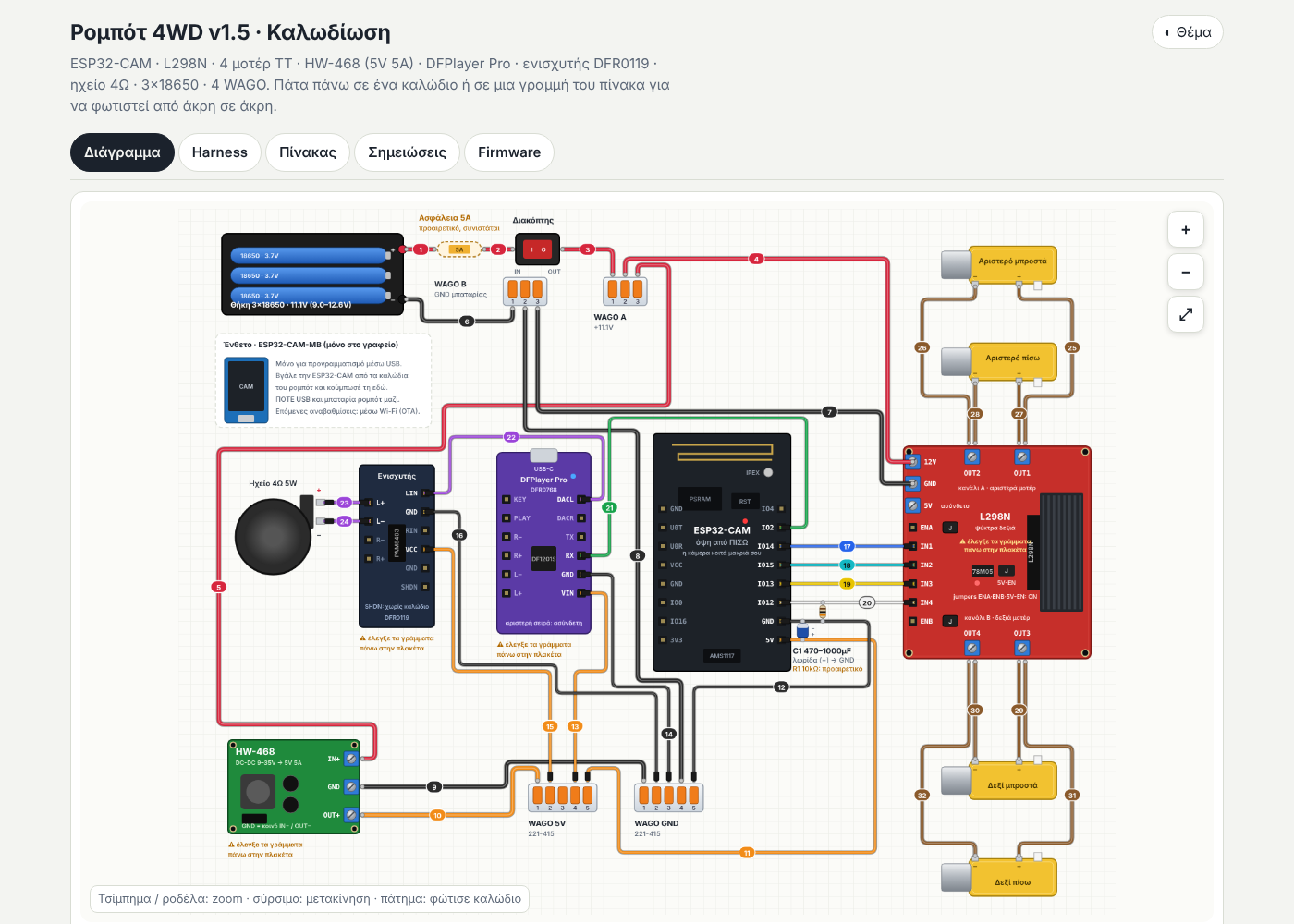
Reference image supplied with the guide. Open it at full size.
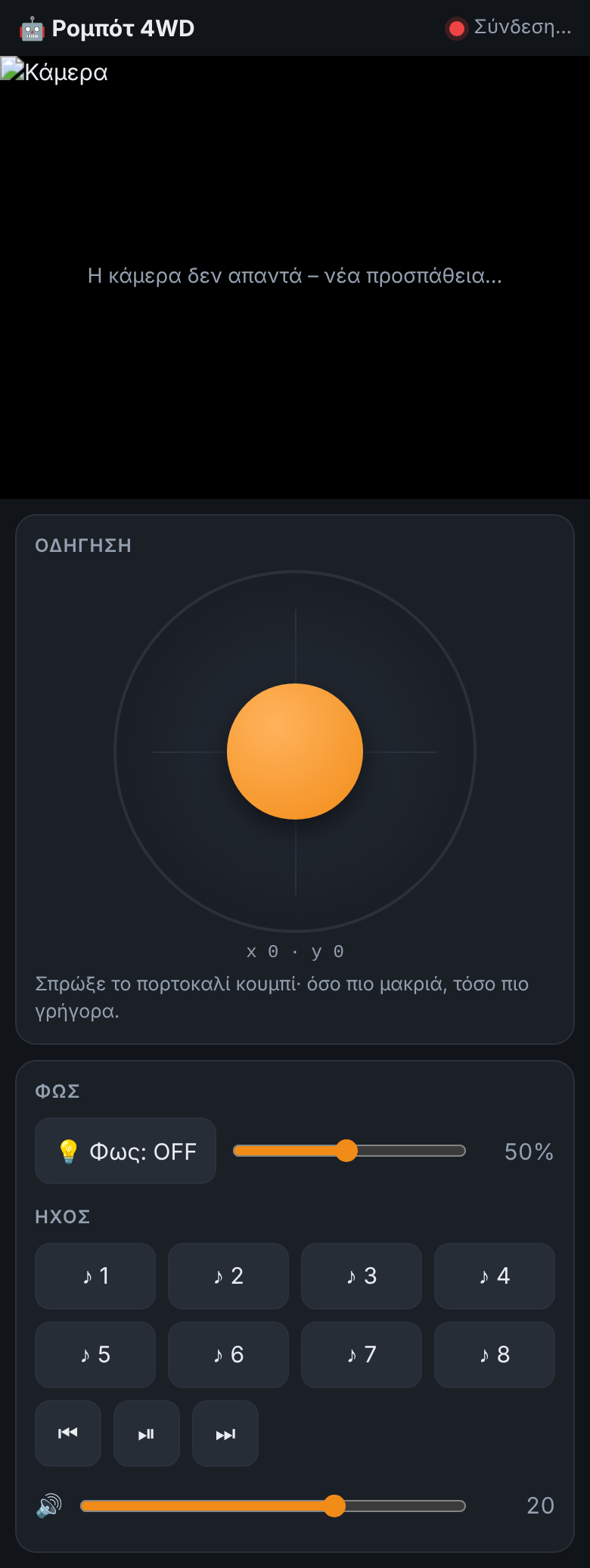
The firmware control screen on a phone.
The diagram, harness, and table are generated from the same data model (tools/model.py) and automatically checked by tools/check.py.
That statement comes from the original source. tools/model.py and tools/check.py were not supplied, and their check has not been run.