Raspberry Pi / Retro Gaming
GPi Case 2W and Pi Zero W: setting up Recalbox 9.2
How I fixed incorrect case detection, restored the display, and configured the controls on a GPi Case 2W with a Raspberry Pi Zero W.
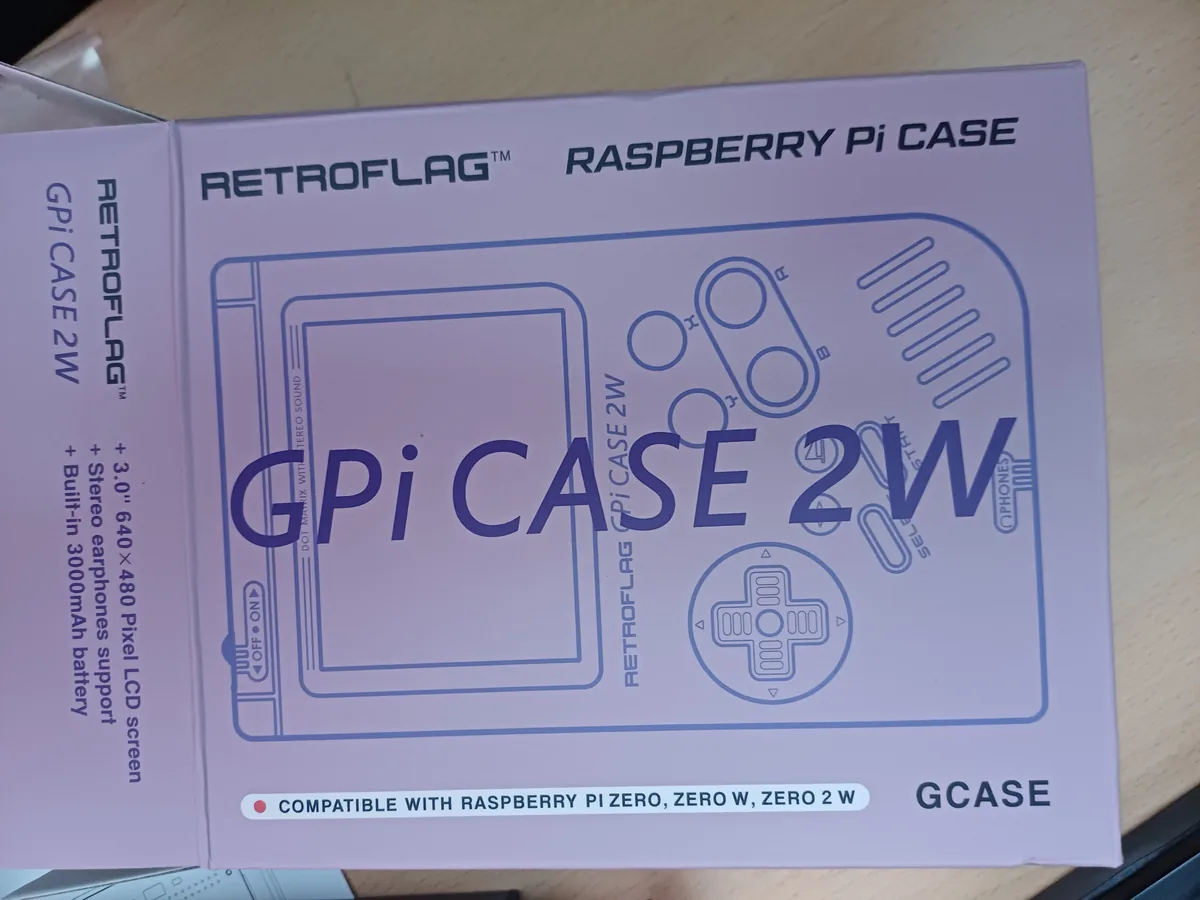
The Retroflag GPi Case 2W is a Game Boy-shaped case with a 3-inch 640×480 screen, a built-in battery, and controls. A Raspberry Pi Zero fits inside its removable “cartridge”. The box lists compatibility with the Pi Zero, Zero W, and Zero 2W.
I had an original Pi Zero W, rather than a Zero 2W, and wanted to run Recalbox. In practice, this combination did not work out of the box. After several attempts, I realised that incorrect case detection explained the broken picture and the settings reverting to their old values. This guide explains what I found and how I eventually got it working. These settings apply to this particular installation; they are not a general recipe for every Recalbox image or version.
Applies to: GPi Case 2W + Raspberry Pi Zero or Zero W + Recalbox 9.2. The support added in Recalbox 9.x applies to the Pi Zero 2W. This guide documents my installation on the older Zero W; it does not assume that every Zero 2W image behaves identically.
The problem: Recalbox mistakes it for the old case
On the first boot, Recalbox detects the case and automatically configures the display, audio, and controls. However, GPi Case 2W support was added for the Raspberry Pi Zero 2. The Pi Zero / Pi 1 image needed by the Zero W only knows about the original GPi Case.
Both cases connect to the Pi in the same way: the screen uses the GPIO DPI interface, while the buttons appear as a controller. Detection therefore fails to distinguish between them and selects the case it knows. The boot log in SHARE/system/logs shows this too:
doing startup for board GPiV1But the original GPi is a different device: it has a rotated 320×240 screen and no Home button. Recalbox applies those settings to a case with a 640×480 screen.
The symptoms
The following symptoms appeared on my installation. Incorrect case detection explains the picture and settings being restored. A game that will not launch needs further checks: the same error can refer to ROM or BIOS files, not just display configuration.
- A broken picture. A small piece of the logo appeared at the top left, with vertical coloured lines across the rest of the screen. The display was receiving timings for 320×240.
- Fixes disappeared. Even after correcting the settings, the “Installing GPi Case… Finalizing” message appeared, and Recalbox wrote the old GPi settings back again.
- Games would not start. They either dropped back to the list or displayed “Looks like your game didn’t start at all!”, even with the games bundled with Recalbox.
- Hotkey combinations did nothing when I used Home.
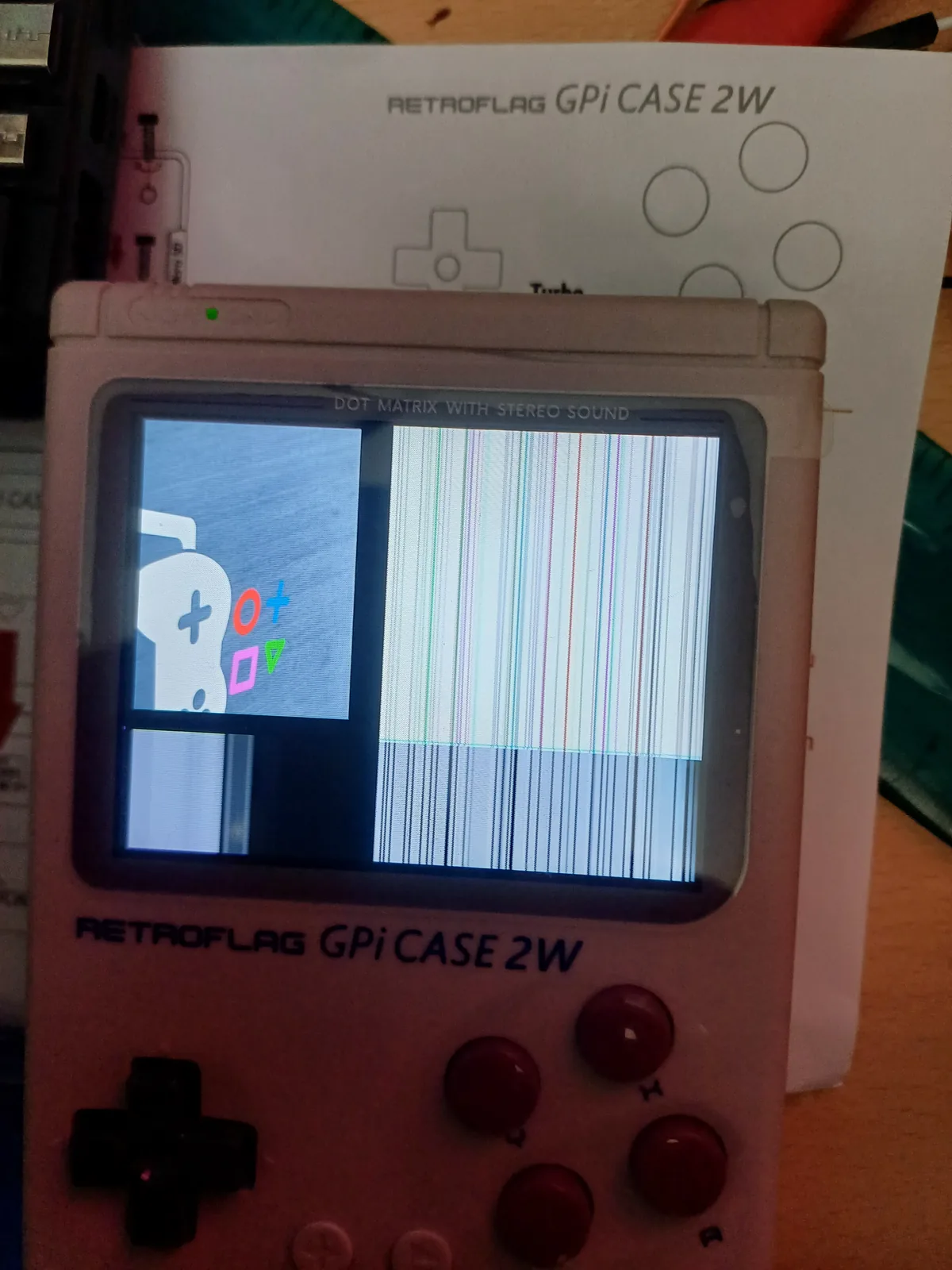 _The first boot using settings for the original GPi._
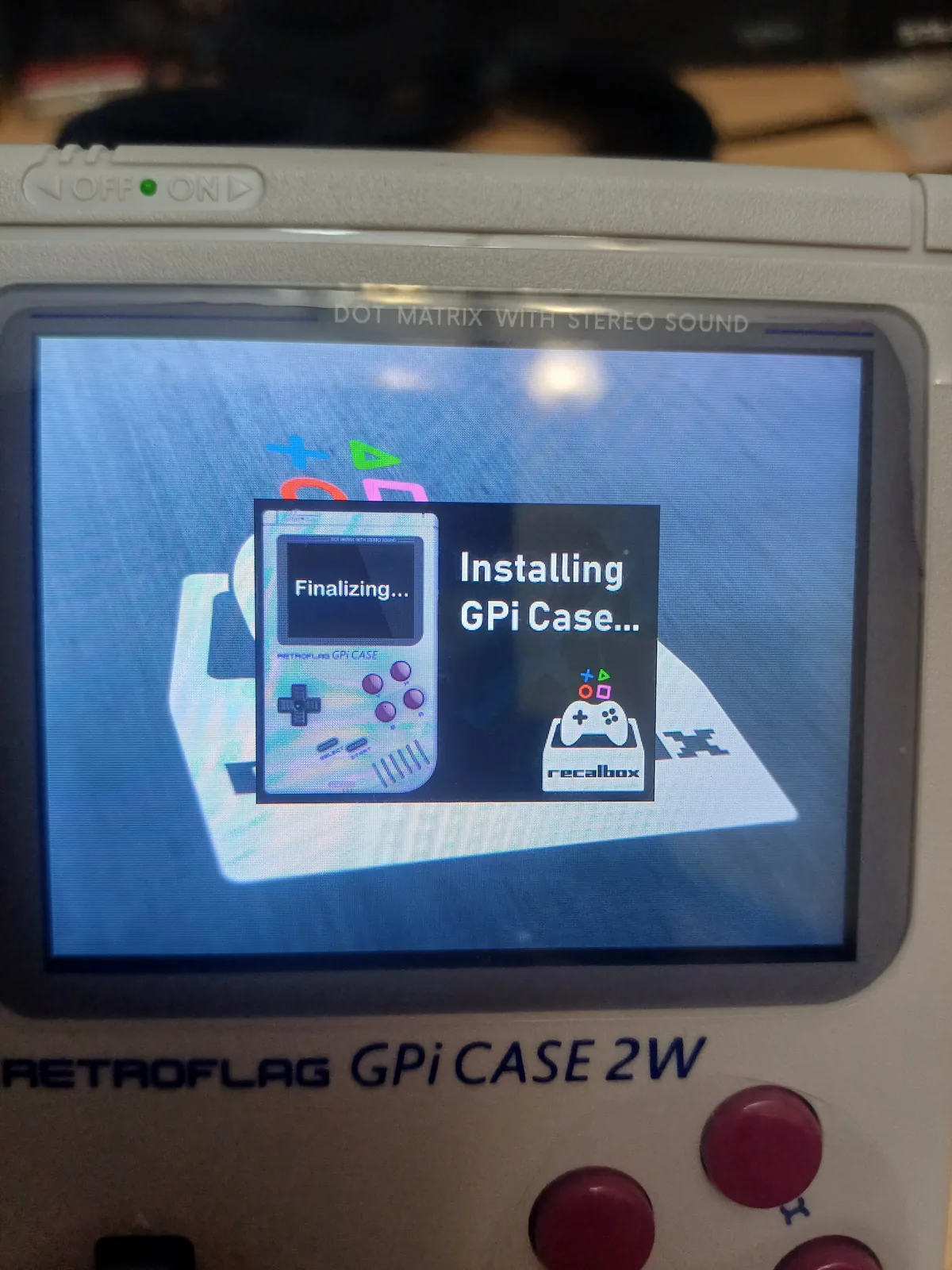 _Recalbox installs settings for the case it detected._
Why the Retroflag patch is not enough
Retroflag provides separate configuration files for the Zero and Zero 2W in its GPICASE2W-display-patch repository. With a Zero W and Recalbox 9.2, however:
- The Zero file loads the
dpi-pizero-gpicaseoverlay, which does not exist in Recalbox 9.2. The patch was written for 8.1.1. - In issue #2, users report that the Zero 1 file does not work, while the Zero 2W file also works on a Zero 1. An important difference is the slower screen pixel clock: 19.2 MHz rather than 32 MHz, with lower settings than the other patch. In my test, the faster screen and more aggressive settings allowed the menu to appear, but games crashed.
- The unmodified Zero 2W file still left my system stuck at the loading screen, matching another report in the same issue. I needed a combination of the two configurations.
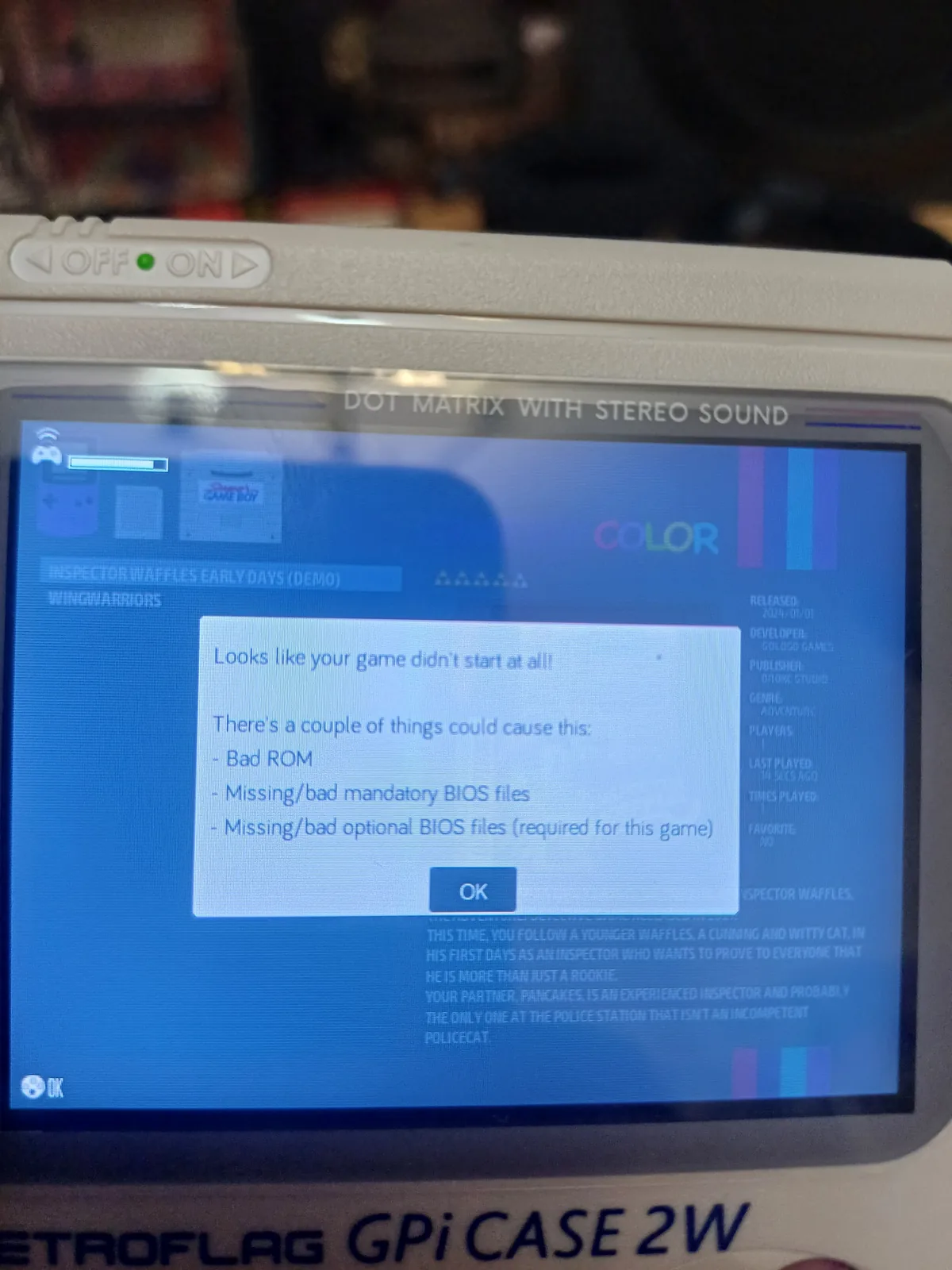 _The failure message also lists possible ROM or BIOS causes. It cannot diagnose the problem on its own._
The fix, step by step
What I need
- A Retroflag GPi Case 2W.
- A Raspberry Pi Zero or Zero W without soldered header pins.
- A microSD card.
- A computer with Raspberry Pi Imager.
1. Write the correct image
In Raspberry Pi Imager, choose Choose OS → Emulation and game OS → Recalbox → “Recalbox - Raspberry Pi Zero / 1 / GPiCase1”.
Although the name sounds wrong, this is the correct image for the Zero W. Another user with the same combination notes that the “GPiCase 2W + Raspberry Pi Zero” image on the Recalbox website is misleading for this setup and results in a black screen.
“GPi Case 2” is a different case for the Compute Module 4. It is not the 2W.
2. Let the first boot finish without touching anything
Insert the card into the cartridge and turn the power on. A broken picture is expected at this point. Leave it for 10 minutes without pressing anything, allowing case installation to finish, and then switch it off.
Switching off partway through installation can leave it incomplete. It may then run on every boot and repeatedly restore the old GPi settings. This happened to me; writing the card again was the cleanest way to recover.
3. Find the RECALBOX partition in Windows
These are the two partitions relevant to this guide when working in Windows. Depending on the image, other partitions may also exist; we do not need to modify them:
| Partition | Contents |
|---|---|
| RECALBOX (small, FAT32) | config.txt, recalbox-user-config.txt, recalbox-boot.conf, overlays |
| SHARE (exFAT) | Games, BIOS files, saves, system/recalbox.conf |
Windows often shows only SHARE. To make RECALBOX visible, right-click Start → Disk Management → right-click the card’s small FAT32 partition → Change Drive Letter and Paths → Add.
If Windows offers to format the drive, click Cancel.
4. Replace the display configuration
On RECALBOX, first back up recalbox-user-config.txt. Then open it—Windows may hide the .txt extension—and replace all of its contents with this:
boot_delay=5
dtparam=audio=on
dtoverlay=pwm-audio-pizero-gpicase
display_rotate=0
dtoverlay=recalbox-gpicase1
overscan_left=0
overscan_right=0
overscan_top=0
overscan_bottom=0
framebuffer_width=640
framebuffer_height=480
enable_dpi_lcd=1
display_default_lcd=1
dpi_group=2
dpi_mode=87
dpi_output_format=0x00016
hdmi_timings=640 0 1 1 20 480 0 1 1 2 0 0 0 60 0 19200000 1
avoid_safe_mode=1
disable_pvt=1
disable_audio_dither=1
audio_pwm_mode=2
dtparam=act_led_trigger=default-on
arm_freq=1000
over_voltage=0
core_freq=450
sdram_freq=450
over_voltage_sdram=0
dtparam=sd_overclock=50
extra_transpose_buffer=2
This starts with Retroflag’s Zero 2W configuration, with two overlay changes that allowed it to boot on the Zero W:
An important clarification: the Pi Zero W CPU runs at 1000 MHz by default, so arm_freq=1000 does not raise its CPU frequency. However, core_freq=450 is above the official 400 MHz default; calling the entire configuration “no overclock” would be incorrect. I preserve the values used on my installation without presenting them as universally safe for every board. Official clock documentation.
| Setting | Zero 2W (Retroflag) | Used here | Reason |
|---|---|---|---|
| Display overlay | dpi24 | recalbox-gpicase1 | dpi24 left it stuck at the loading screen |
| Audio overlay | audremap,pins_18_19,swap_lr | pwm-audio-pizero-gpicase | GPi audio on the Zero |
| Pixel clock | 19.2 MHz | 19.2 MHz | The same slower display timing for stability |
| Clock settings | Values supplied in the patch | CPU 1000 / core 450 / SDRAM 450 MHz | Preserves the values from this particular installation |
The configuration block is provided without comments for easy copying.
config.txtdoes support lines starting with#, as described in the Raspberry Pi documentation. The Recalbox forum report, where removing comments helped one installation, is an individual experience rather than a general rule for every black screen.
5. Correct the emulators’ video mode
In SHARE → system → recalbox.conf, find global.videomode and set it to:
global.videomode=defaultMine was set to 1280x720: each emulator was trying to use a resolution that the GPIO-connected 640×480 display could not show.
6. Boot
Eject the card, put it back in the GPi, and switch it on. The first startup after the change can take a little longer. Wait for the menu to appear, then try a Game Boy game.
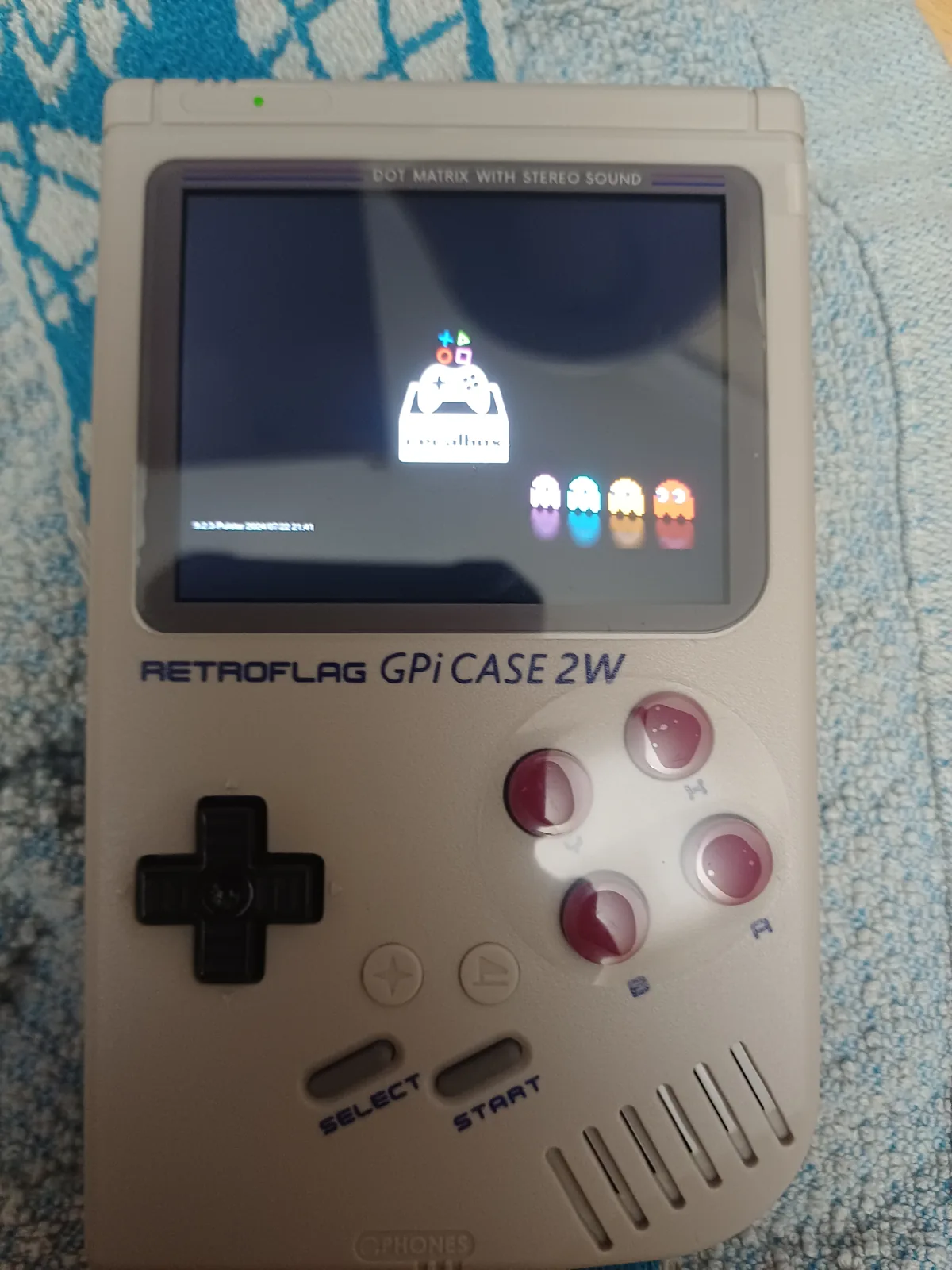 _The loading screen now fills the display correctly. This photograph shows loading, not a game running._
After installation: using the case as an “old GPi”
Even with a working screen, Recalbox still believes it is running on the original GPi. There are a few consequences to keep in mind.
SELECT is the hotkey, not Home
According to the Recalbox wiki, the hotkey is Home/Guide when the controller has that button; otherwise it is usually SELECT. The original GPi has no Home button, so Hotkey = SELECT, and the 2W’s house-shaped button does nothing in this setup.
Recalbox also names buttons by their positions on a Super Nintendo controller, rather than the letters printed on the case: A = right, B = bottom, X = top, Y = left.
| Combination (hold SELECT) | Action |
|---|---|
| Select + Start | Exit the game |
| Select + bottom button (B) | Open the RetroArch menu |
| Select + right button (A) | Reset the game |
| Select + left button (Y) | Save state |
| Select + top button (X) | Load state |
| Select + ↑ / ↓ | Change the save slot (0–9) |
| Select + ← / → | Rewind / fast-forward |
If a shortcut is not where I expect it, the same actions are available through the RetroArch menu: Quick Menu → Save State / Load State, Quick Menu → Options for emulator settings, and Resume to return to the game.
Saving progress
- The game’s own save function, through its menu. Saves are written to
SHARE/saves, provided I exit with Select + Start rather than turning off the power switch. - Save states, which preserve the exact moment in a game, including games without their own save system.
- To resume automatically from where I stopped, I set
global.autosave=1inrecalbox.conf.
For SNES, Recalbox on the Pi Zero uses PiSNES, a separate emulator rather than a RetroArch core. Save-state shortcuts and the RetroArch menu may therefore not work there. The game’s own save function is the dependable option.
Settings may be overwritten
If case installation runs again after an interruption or a Recalbox update, it writes the old GPi settings back into recalbox-user-config.txt. For that reason:
- Keep a backup of the file on the computer.
- Do not update through the menu, or set
updates.enabled=0inrecalbox.conf. - Shut down through Start → Quit → Shutdown, then turn off the power switch.
If the settings keep being overwritten, there is a workaround: add the essential display values at the end of config.txt, after include recalbox-user-config.txt. The last settings take precedence:
display_rotate=0
framebuffer_width=640
framebuffer_height=480
dpi_output_format=0x00016
hdmi_timings=640 0 1 1 20 480 0 1 1 2 0 0 0 60 0 19200000 1
Recalbox replaces
config.txtduring an upgrade, so this workaround will also be lost if I update.
Games
Put games in SHARE → roms → the console’s directory, directly inside that directory rather than in a subdirectory:
| Console | Directory | Extensions |
|---|---|---|
| Game Boy | gb | .gb, .zip |
| Game Boy Color | gbc | .gbc, .zip |
| NES | nes | .nes, .zip |
| Super Nintendo | snes | .sfc, .smc, .zip |
| Game Boy Advance | gba | .gba, .zip |
If a game does not appear, choose START → UI Settings → Update game lists. If it is still missing, make sure DO NOT SCAN NEW GAMES is not enabled under Advanced Settings → Boot Settings. The Recalbox wiki identifies this as the most common cause.
Use game files you have the right to use. Tools such as the GB Operator can read personal cartridges, and free Game Boy homebrew games are also available on itch.io.
What the Zero W can handle
- Game Boy, Game Boy Color, NES, Master System, Game Gear: comfortably.
- SNES: runs with PiSNES, which is designed for older Pi hardware. Some demanding games stutter a little.
- Game Boy Advance: many games run, while some struggle. gpsp is the lighter emulator.
- PSP: no. Recalbox on the Pi Zero does not even list PSP games.
If Game Boy Color games have slow movement and audio—SNES ran more smoothly on my setup—I choose the lighter gambatte emulator in the system settings and set global.smooth=0 in recalbox.conf.
Original Game Boy games are monochrome. In RetroArch’s Quick Menu → Options, GB Colorization applies a Game Boy Color-style palette.
Troubleshooting
| Symptom | What to do |
|---|---|
| The picture breaks again after a while | The settings have been overwritten. Restore recalbox-user-config.txt from the backup. |
| Only the SHARE drive is visible | Assign RECALBOX a drive letter in Disk Management (step 3). |
| Stuck at the loading screen | Wait 5 minutes. If it is still stuck, check for the recalbox-gpicase1 and pwm-audio-pizero-gpicase overlays. |
| Black screen | Check the image, version, overlay names, and whether the file was copied correctly. The presence of comments does not establish the cause. |
| “Game didn’t start at all” | Check global.videomode=default, ROM/BIOS files, and clock settings. The message alone does not identify the cause. |
| “Installing GPi Case” appears on every boot | Installation may be incomplete. The cleanest approach is to rewrite the card and let the first boot finish. |
| Home does nothing | Expected in this setup: Select is the hotkey. |
Conclusion
The GPi Case 2W works with the Pi Zero W, but it is not ready to go out of the box with this Recalbox setup. Recalbox mistakes it for the older GPi, so the display needs manual configuration, Select becomes the hotkey, and updates require care. Once configured, it makes a very enjoyable handheld for Game Boy, GBC, NES, and most SNES games.
For a new installation, I would consider a Pi Zero 2W, for which official case support was added in Recalbox 9.x. This guide remains a record of my Zero W setup and does not replace the instructions for a particular image. Start with Retroflag’s instructions and the release notes relevant to your installation.